How to show a mobile design in a video
A phone screen is narrow and tall, and most video is wide. Drop one into the other without a plan and the design ends up as a thin strip in a sea of background. Here is how to prepare the frame, stage it and pick the format.
Free on Figma Community · 3 free exports · no watermark
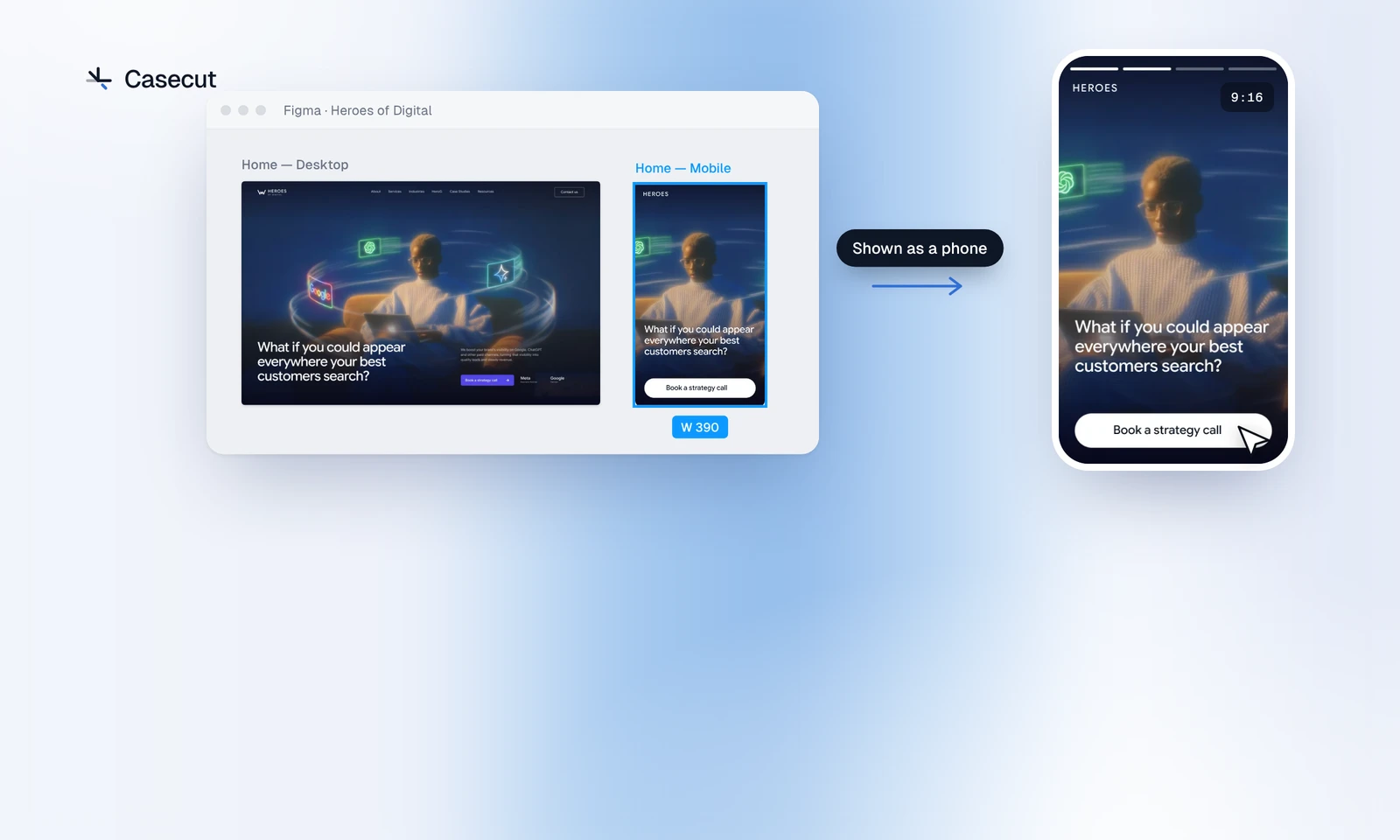
Why a phone screen needs its own video
A desktop page fills a wide video edge to edge. A phone screen does not: shown at full height in 16:9, it takes a narrow column in the middle, and shown at full width, it gets cut off after the first screen. Neither tells the viewer how the design feels in the hand.
The common shortcut, placing the desktop and the mobile versions side by side in one picture, has its own cost. Both get smaller, the eye jumps between them, and neither gets the camera.
A mobile design reads best as a phone: one screen in the middle of the picture, large enough to read, with the page moving through it section by section.
Prepare the frame
Most of the work happens in Figma, before any video exists. A clean frame gives the animation something to hold on to.
- Design at phone width. 390 px is a good choice. Casecut shows any frame up to 520 px wide as a phone screen.
- Make the mobile version its own top-level frame. Do not place it next to the desktop version inside one frame.
- Keep the whole page in that frame. A long page is fine; under about 12 000 px the text stays crisp.
- Give the frame a solid fill. That colour is used behind the page.
- Make each section a direct child of the frame and name it: Header, Hero, Services, Footer.
- Keep text as live text. Outlined text becomes a picture and cannot be read by the AI director.
Build the parts that move
Mobile screens are full of things that respond to a tap: a wide button at the bottom, tabs, an accordion, a carousel of cards. In a video they only come alive if they are built as real parts.
- The main button. A frame or an instance with a label inside and its own fill. On a phone frame a full-width button counts. The first click of the video goes to the main call to action, so give it a real verb.
- Tabs and accordions. Instances of one component in one parent, with exactly one of them in the active variant. When the cursor clicks another one, the active state moves to it.
- Carousels. Slides of the same size in a row that runs past the edge of a frame with Clip content on, and named arrows next to it. Then the carousel really slides.
Pick the format for the place
The shape of the video decides how much room the phone gets. Choose it by where the video will be watched.
| Where | The phone | Use it for | |
|---|---|---|---|
| 9:16 | Reels, Stories, TikTok, Shorts | Fills most of the screen | A short teaser of the app |
| 4:5 | Instagram and LinkedIn feed, Behance, Dribbble | Large, with room for a title | The cover of a case |
| 16:9 | X, LinkedIn, your site, presentations | On a wide stage | Next to the desktop video |
Vertical video is watched by people who scroll, so keep it short and let it make one point. In Casecut each format gets its own camera instead of a crop of the same shot, all three come out of one export, in 1080p on the free plan and 4K on Pro and Studio.
Desktop and mobile in one case
When a project has both versions, make two videos instead of one crowded one. In Casecut you can send up to six frames at a time, and each becomes its own video. Send the desktop and the 390 px frame of the Heroes of Digital homepage, an AI SEO agency page, together, and you get a wide walkthrough of the desktop page and a phone video of the mobile one.
On the case page, open with the desktop video and put the mobile one right after it. In the feed, post the vertical cut on its own. Each version gets the whole picture, and the viewer sees that the design holds up on both screens.
Design reels in 9:16, 4:5 and 16:9 from a Figma frameTry it on your own frame
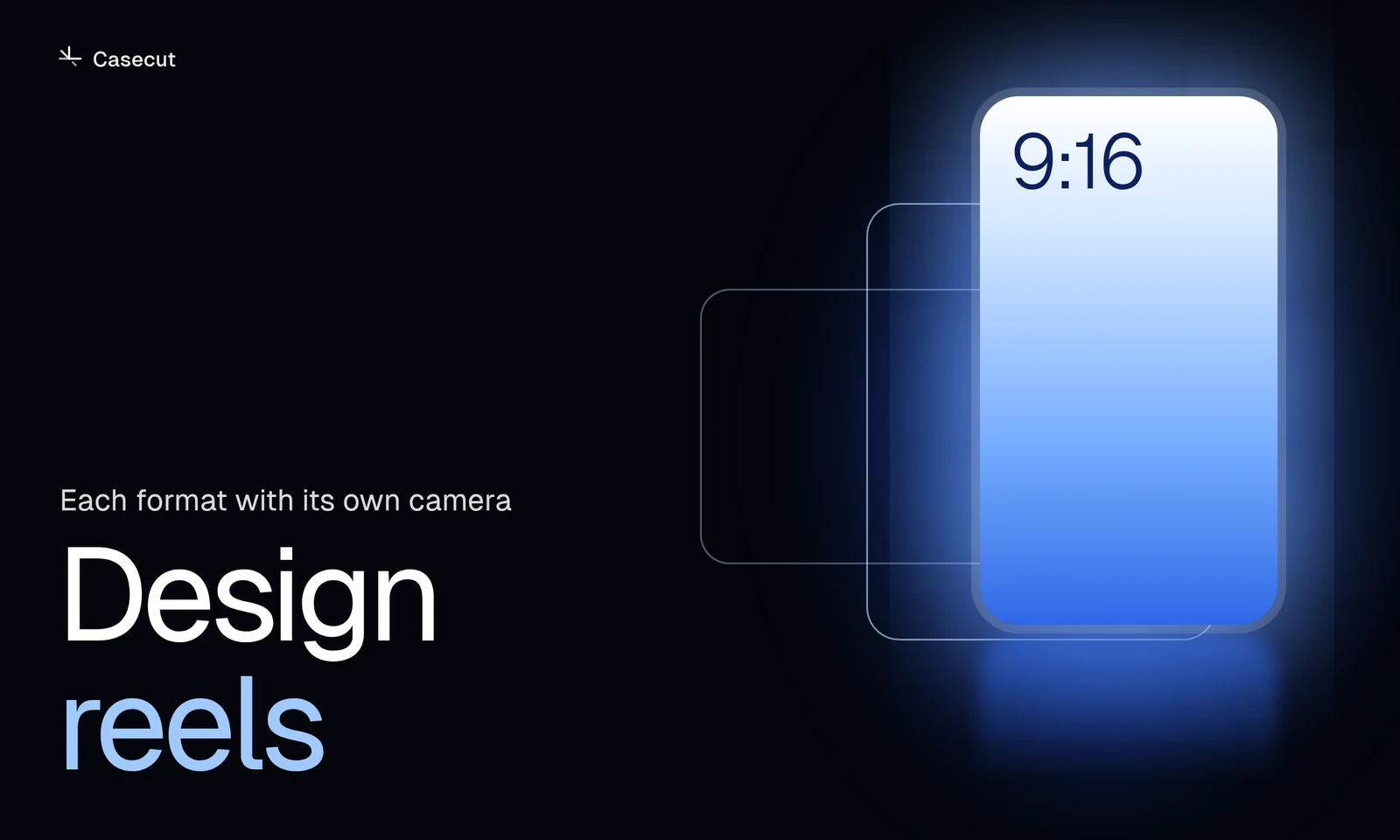 Design reels9:16, 4:5 and 16:9 from one frame, each with its own camera.OpenGuide
 Figma to videoTurn a frame into an MP4 without recording your screen.Open
More from the blog
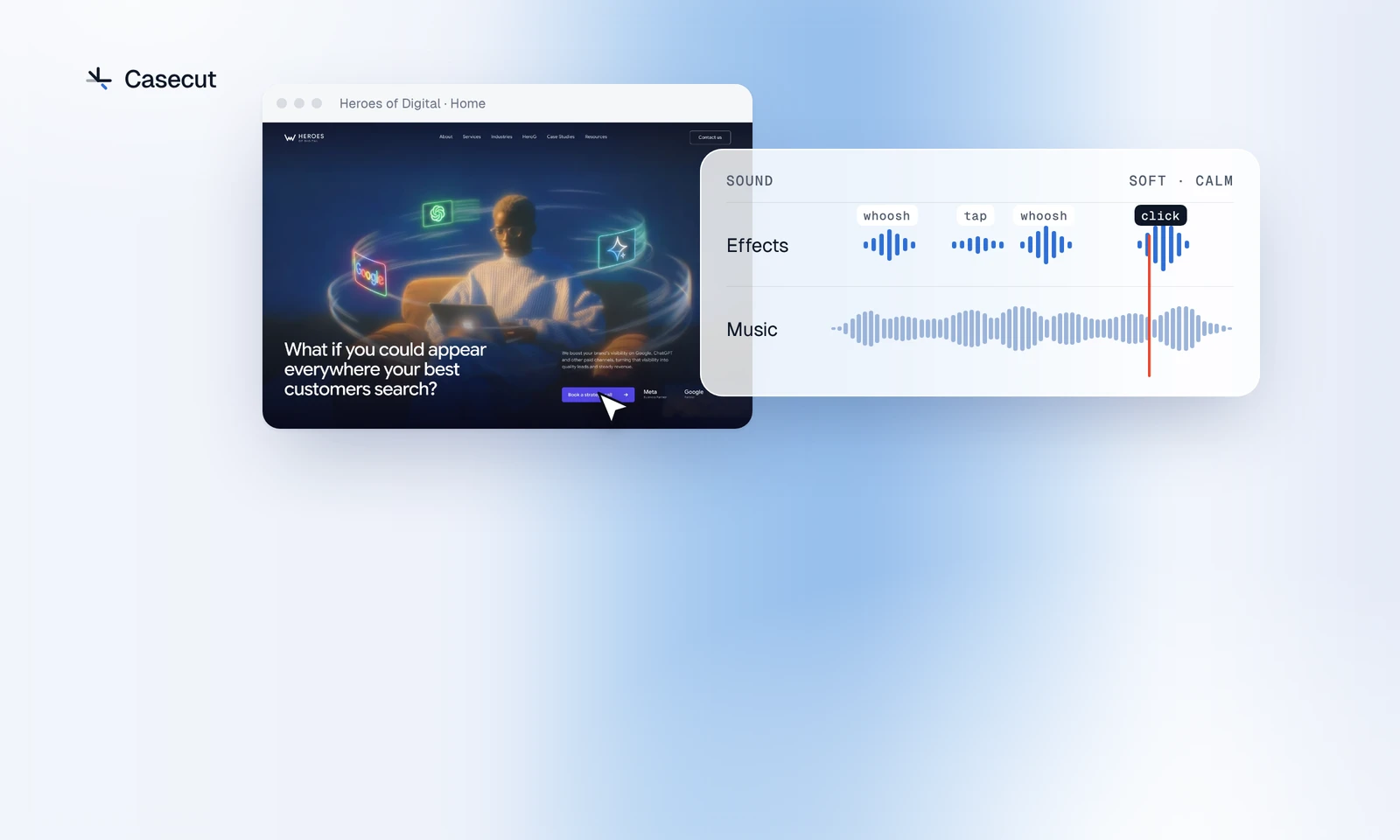 Sound for a UI videoWhich sound goes with which move, and where the music sits.3 min readOctober 7, 2026
 Figma prototype to video: four waysScreen recording, After Effects, motion tools and an automatic walkthrough.2 min readOctober 7, 2026
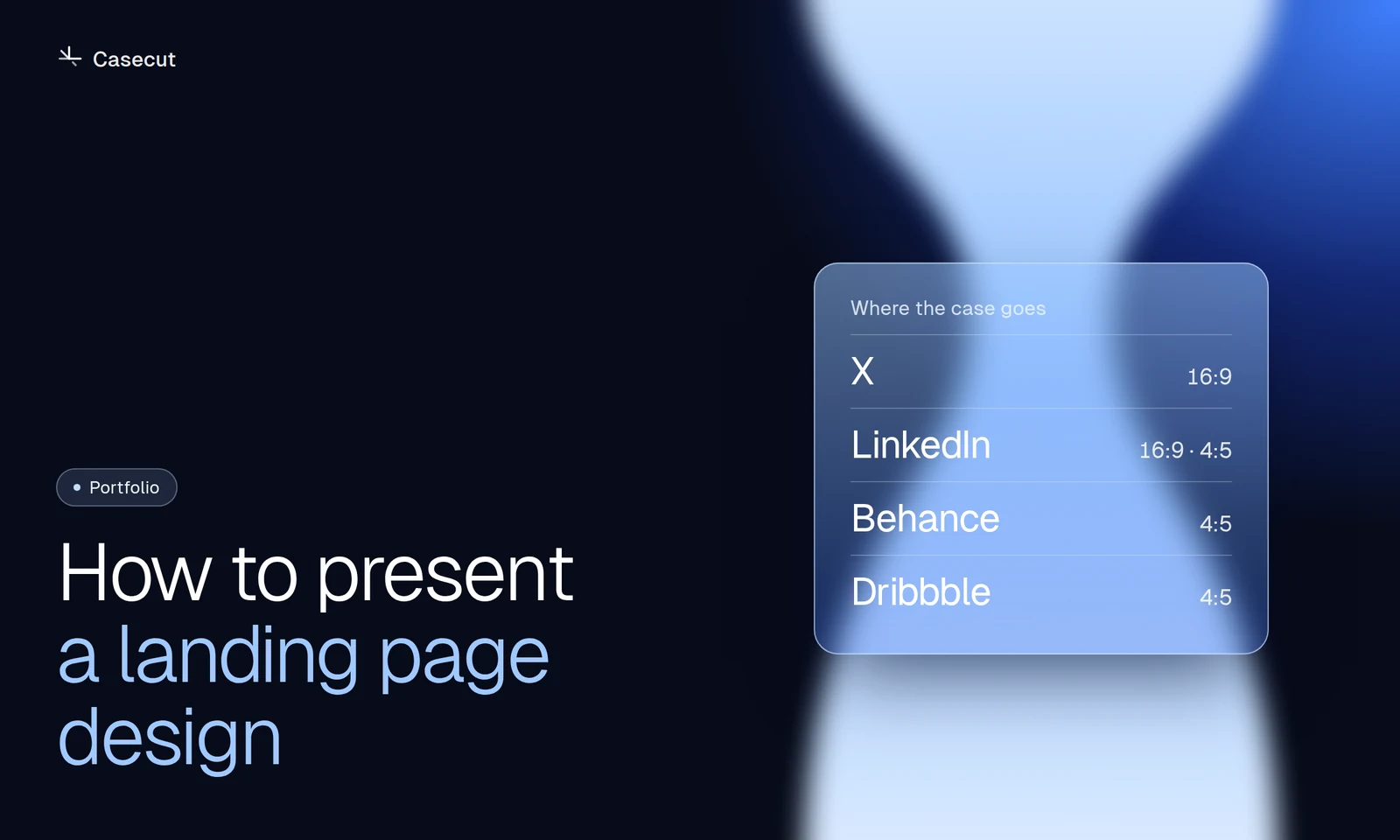 How to present a landing page designA practical structure for Behance, Dribbble, X and LinkedIn.2 min readOctober 7, 2026
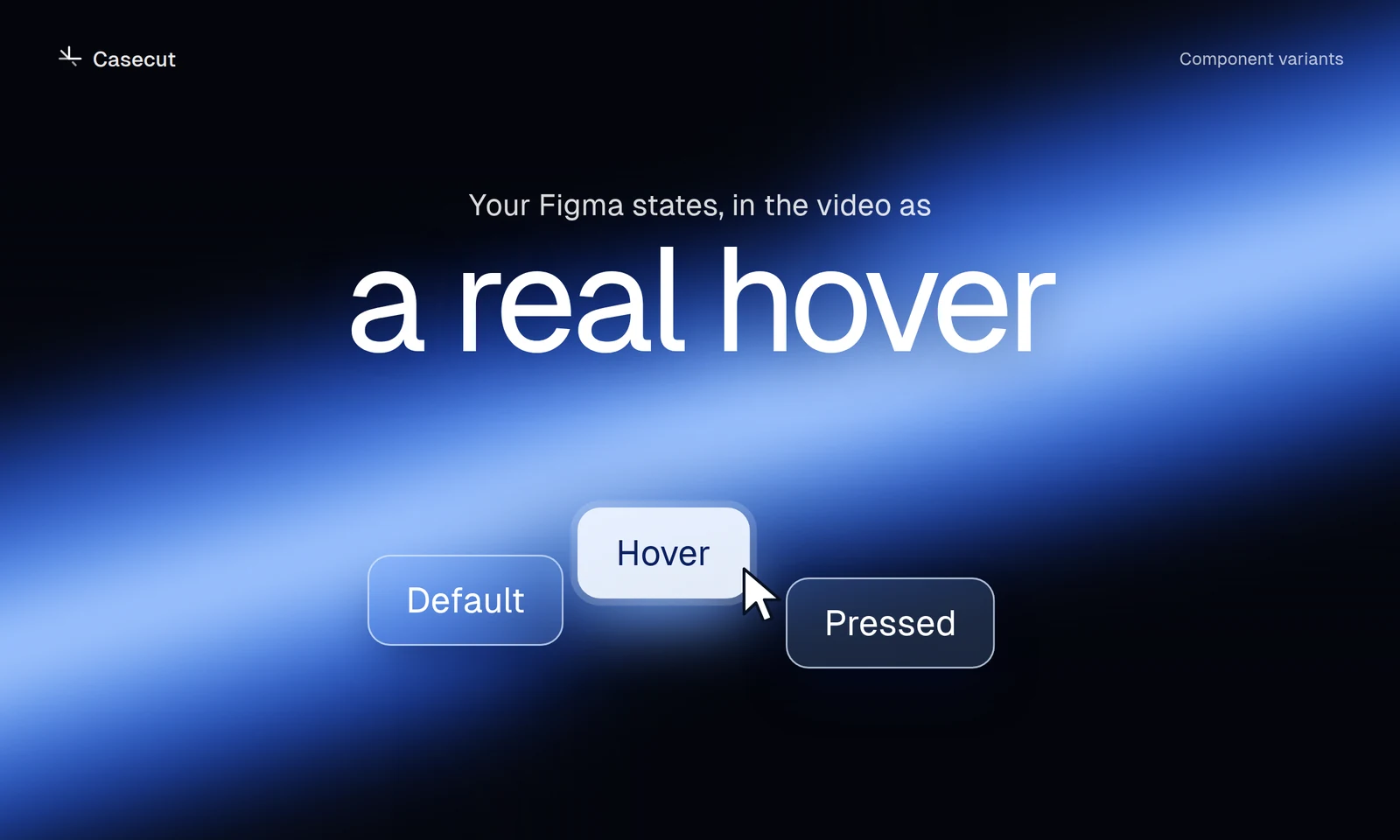 Figma hover states in a videoSet up variants so buttons and cards show their real hover.2 min readOctober 7, 2026
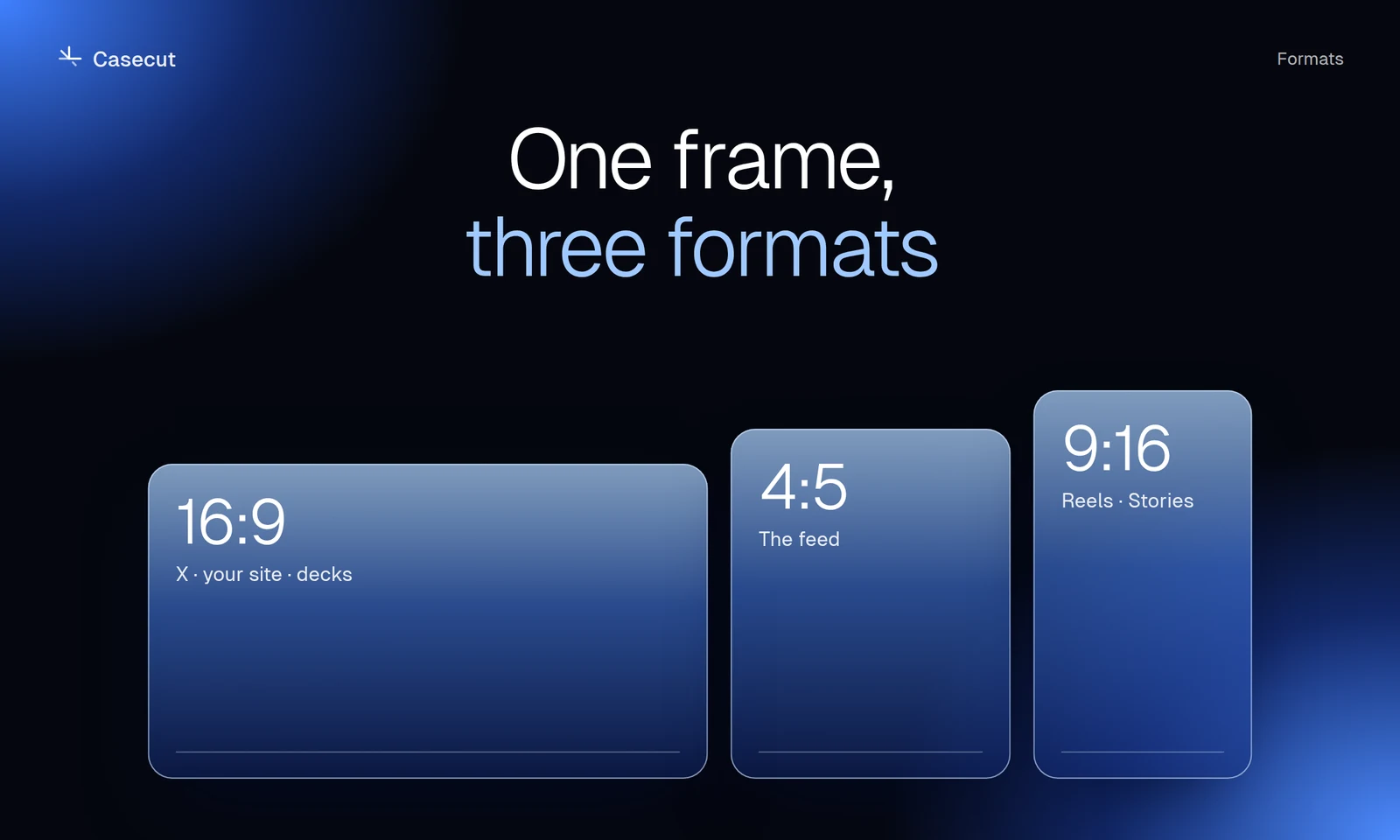 16:9, 4:5 or 9:16 for a case videoWhich format goes where, and why a crop is not enough.2 min read