Questions and answers
The short version: install the plugin, tick a frame, and an AI director turns it into a case video you can edit and export.
Free on Figma Community · 3 free exports every week · no watermark
About Casecut
What is Casecut?
A Figma plugin and a web editor that turn a Figma frame into a motion case video. An AI director writes the storyboard, a real cursor presses your buttons, the sound is scored to the motion, and you export MP4.
How long does it take?
Minutes. Sending a frame and getting the first cut is a short wait; how long you then spend tuning it is up to you.
How should I prepare the frame?
Ordinary tidy Figma is enough: sections as frames, buttons as components, hover states as variants. There is a short guide, written so you can hand it to your AI assistant.
What counts as an export?
One export run of one frame. All the formats you ticked together count as one.
Can I cancel a paid plan?
Anytime, in your account. The plan stays active until the end of the period you paid for, and a charge can be refunded in full within 14 days.
Is Casecut free?
Yes. The free plan gives you 3 exports every week in 1080p with no watermark, with the AI director, sound and all three formats included. Pro adds 4K and 30 exports a month, Studio removes the limit.
Do I need a paid Figma plan?
No. The plugin works on any Figma plan, in the browser and in the desktop app.
What happens to my Figma file?
Nothing changes in it. The plugin sends only the frames you tick; to render a clean background it makes a temporary copy of the frame and removes it right away.
Which formats can I export?
MP4 in 16:9, 4:5 and 9:16. Each format gets its own camera, it is not a crop of the same shot. 1080p on the free plan, 4K on Pro and Studio.
Can I change what the AI made?
Everything. Each block on the timeline has its own menu, every layer has its own entrance, cursor clicks can be moved or switched off, you can add your own cursor stop by pointing at any layer, and you can simply tell the director what to change in the chat.
Does it show my hover states?
Yes. If a button or card has a hover state as a component variant in Figma, the video shows that exact state when the cursor reaches it. Sliders really slide and fixed headers stay in place.
Is there sound?
Yes. Soft clicks, whooshes and pops follow every move, with a calm ambient bed underneath. You can add a melody on a recorded instrument, such as piano, vibraphone, marimba or harp, or switch the sound off.
Does it work with mobile designs?
Yes. A frame up to 520 px wide is shown as a phone screen.
What you can make
 Figma to videoTurn a frame into an MP4 without recording your screen.Open
 Case study videosA motion case for every project, ready for Behance, Dribbble and X.Open
 Animated mockupsLayers enter, the page scrolls, a cursor clicks. No keyframes.Open
 After Effects alternativeAn honest comparison for UI case videos.Open
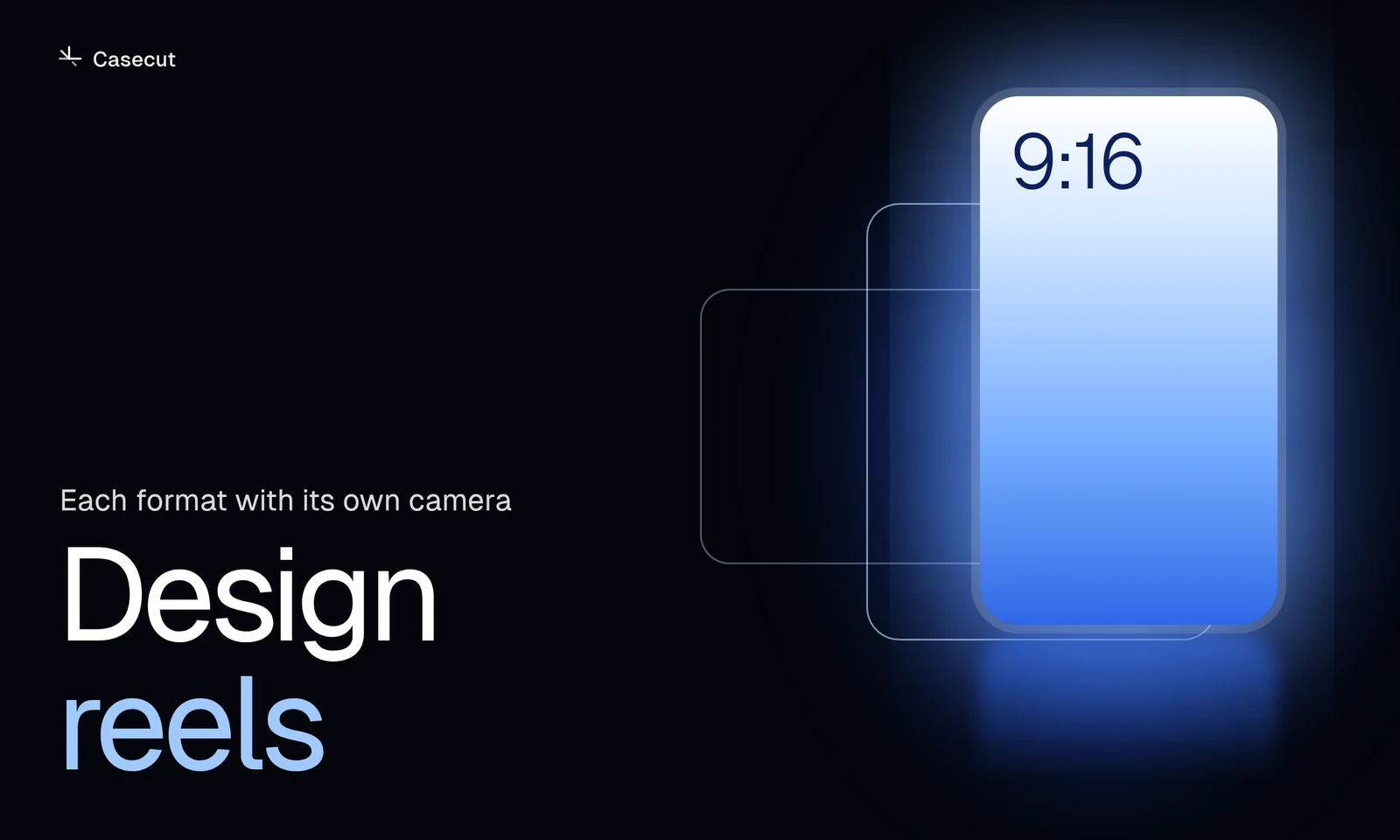 Design reels9:16, 4:5 and 16:9 from one frame, each with its own camera.Open