Figma to video, without recording your screen
Casecut turns a Figma frame into an MP4. A plugin sends the frame with every layer separate, an AI director animates the page the way a visitor would scroll it, and you export in three formats.
Free on Figma Community · 3 free exports every week · no watermark
How it works
- Install the plugin. It is free on Figma Community and works on any Figma plan.
- Tick a frame, press Animate. Every layer arrives on its own, with a clean background behind it. The editor opens in your browser.
- Let the AI director make the first cut. It studies the design, writes the storyboard, moves a real cursor and scores the sound.
- Change anything, then export. Edit on the timeline or tell the director in the chat. Export MP4 in 16:9, 4:5 and 9:16.
Why not just record the prototype?
A screen recording shows your mouse, your scroll speed and your browser. It is fine for a quick review and weak as a portfolio piece: the motion is whatever your hand did that minute.
Casecut builds the video from the layers themselves. Headlines, images, cards and buttons each enter on their own, the camera stops on what matters, and a cursor presses the buttons you designed. Every export is repeatable, in 1080p or 4K.
What comes across from Figma
Questions
Is Casecut free?
Yes. The free plan gives you 3 exports every week in 1080p with no watermark, with the AI director, sound and all three formats included. Pro adds 4K and 30 exports a month, Studio removes the limit.
Do I need a paid Figma plan?
No. The plugin works on any Figma plan, in the browser and in the desktop app.
What happens to my Figma file?
Nothing changes in it. The plugin sends only the frames you tick; to render a clean background it makes a temporary copy of the frame and removes it right away.
Which formats can I export?
MP4 in 16:9, 4:5 and 9:16. Each format gets its own camera, it is not a crop of the same shot. 1080p on the free plan, 4K on Pro and Studio.
Does it show my hover states?
Yes. If a button or card has a hover state as a component variant in Figma, the video shows that exact state when the cursor reaches it. Sliders really slide and fixed headers stay in place.
More ways to use Casecut
 Case study videosA motion case for every project, ready for Behance, Dribbble and X.Open
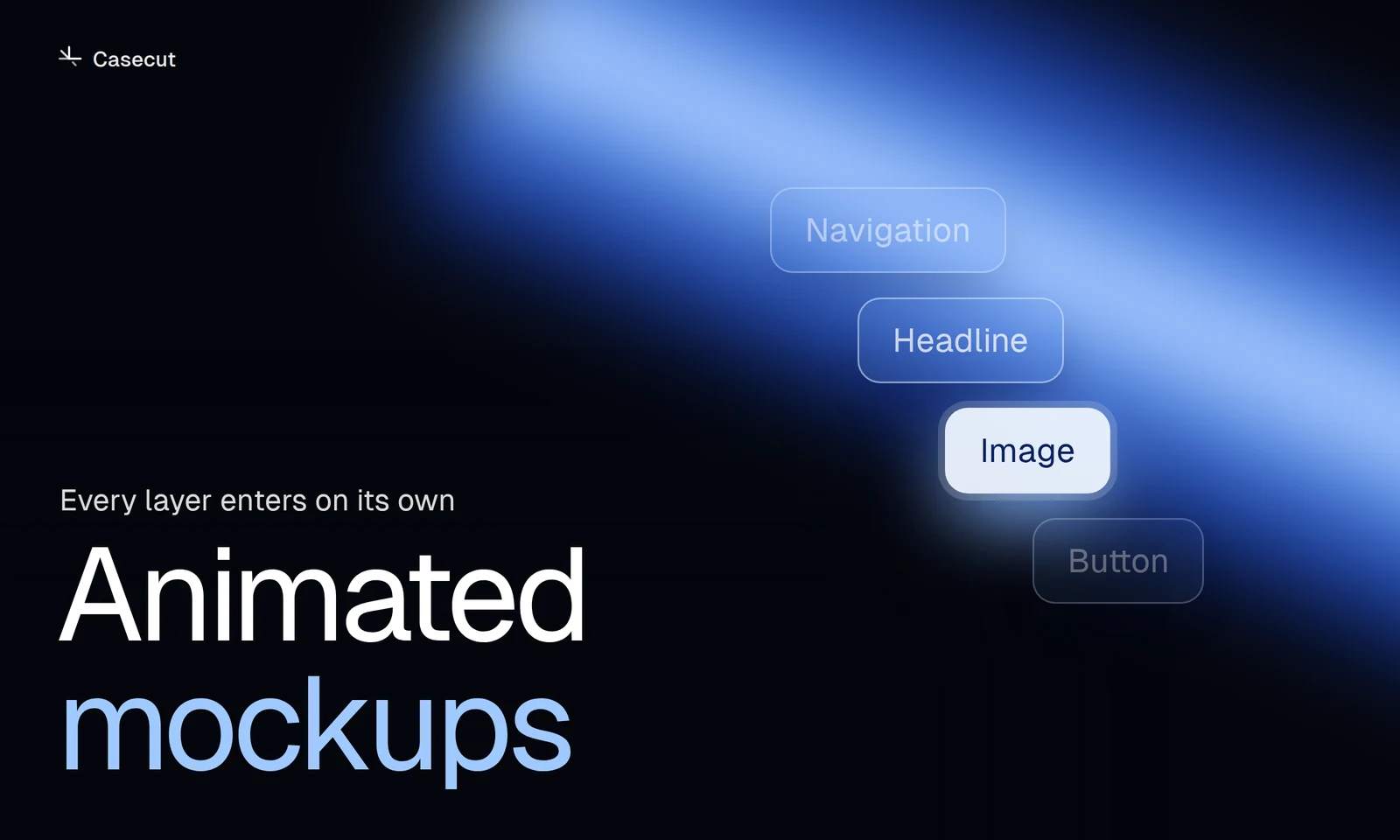 Animated mockupsLayers enter, the page scrolls, a cursor clicks. No keyframes.Open
 After Effects alternativeAn honest comparison for UI case videos.Open