Figma prototype to video: four ways, compared
There is no single right way to get a video out of Figma. It depends on what the video is for: a quick review, a polished interaction, or a case for your portfolio. Here are the four routes designers actually use.
Free on Figma Community · 3 free exports every week · no watermark
1. Record the screen
Open the prototype in presentation view, start a screen recorder and click through. It takes minutes and costs nothing.
The limits show up when you post it. The recording carries your own scroll speed and mouse path, its resolution is the resolution of your screen, and a second take never matches the first. It is the right tool for a review with a client and a weak one for a portfolio.
2. Rebuild it in After Effects
Bring the layers into After Effects, by hand or with an import plugin, and animate them with keyframes. This gives you complete control: any easing, any transition, any camera move.
The price is time and skill. A full landing page is a lot of layers, and animating all of them well can take a working day. Most designers do this for one or two flagship projects a year, not for every project.
3. Use a motion design tool
Browser-based motion tools that import from Figma sit between the two. You still animate by hand, but with presets and a simpler timeline than After Effects. They are a good fit for a single interaction: a button, a card, an onboarding step.
For a whole page the work grows with every section, because each layer still needs a decision from you.
4. Let a director do the walkthrough
This is what Casecut does. A plugin sends the frame with every layer separate, and an AI director decides how the page should be shown: which section gets time, how each layer enters, what the cursor presses. You get a first cut in minutes and change what you do not like, on the timeline or by telling the director in a chat.
It does one kind of video, the walkthrough of a page or a screen. For a custom transition or a brand film you still want After Effects.
Side by side
| Time | Control | Best for | |
|---|---|---|---|
| Screen recording | Minutes | Only what your hand does | Reviews, quick demos |
| After Effects | Hours to a day | Complete | Flagship cases, brand films |
| Motion tool | An hour or more | High, by hand | Single interactions |
| Casecut | Minutes | Timeline, per layer, chat | A case for every project |
Which one to pick
- You need to show a client how the flow works today: record the screen.
- You are making the one case that represents your studio this year: After Effects is worth the day.
- You want to show how one component behaves: a motion tool.
- You want a video for every project you finish, in three formats: Casecut.
Try it on your own frame
 Figma to videoTurn a frame into an MP4 without recording your screen.Open
 After Effects alternativeAn honest comparison for UI case videos.Open
More from the blog
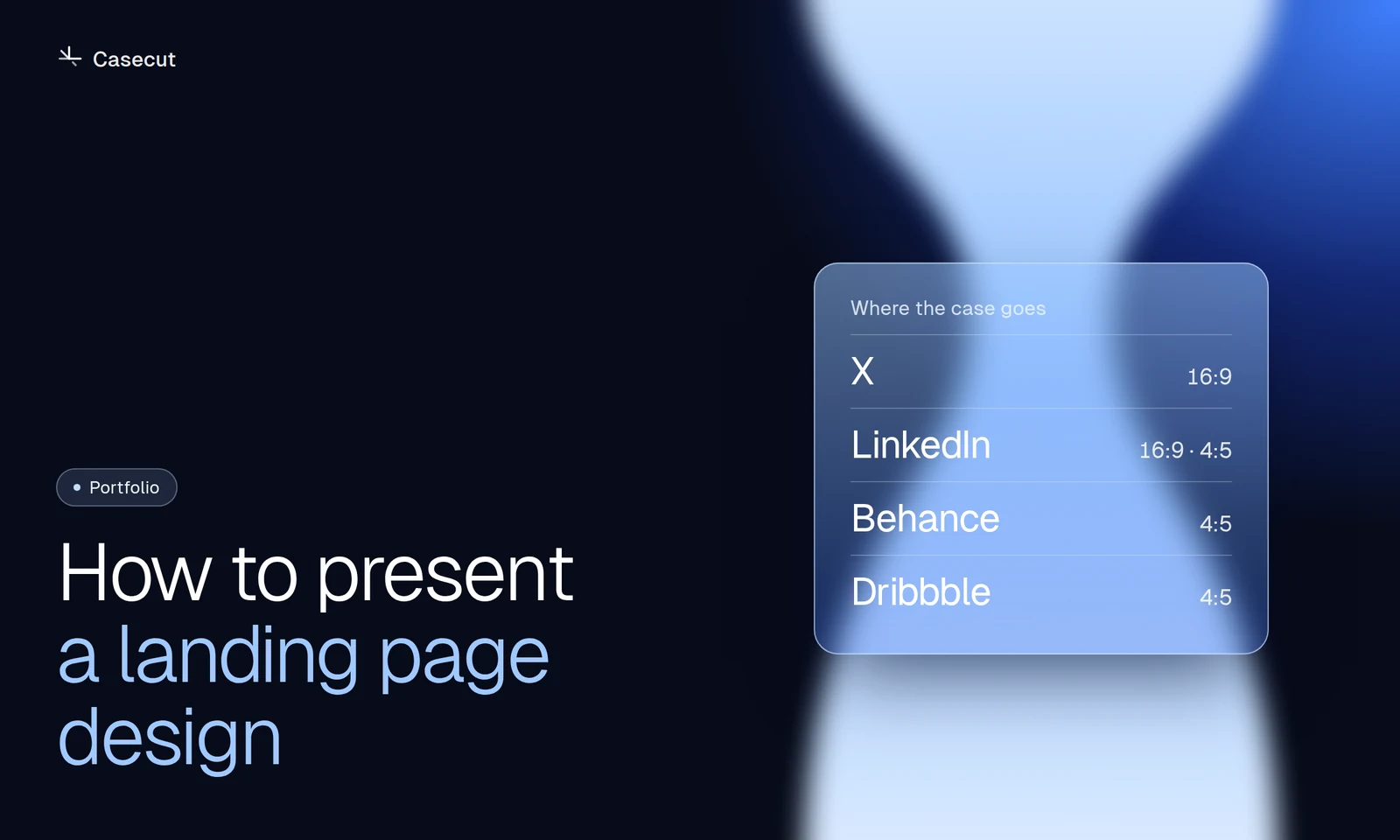 October 7, 20262 min readHow to present a landing page designA practical structure for Behance, Dribbble, X and LinkedIn.Read
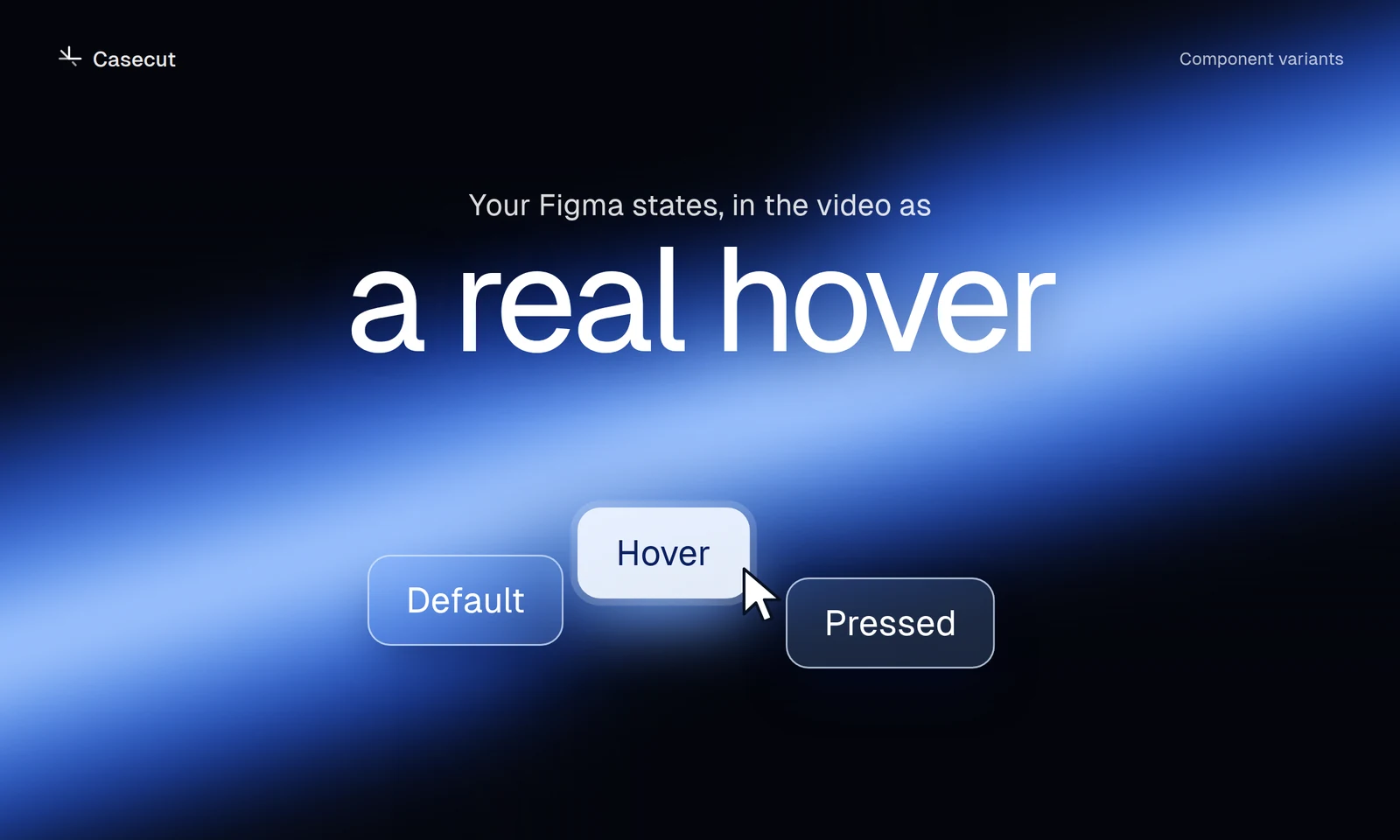 October 7, 20262 min readFigma hover states in a videoSet up variants so buttons and cards show their real hover.Read
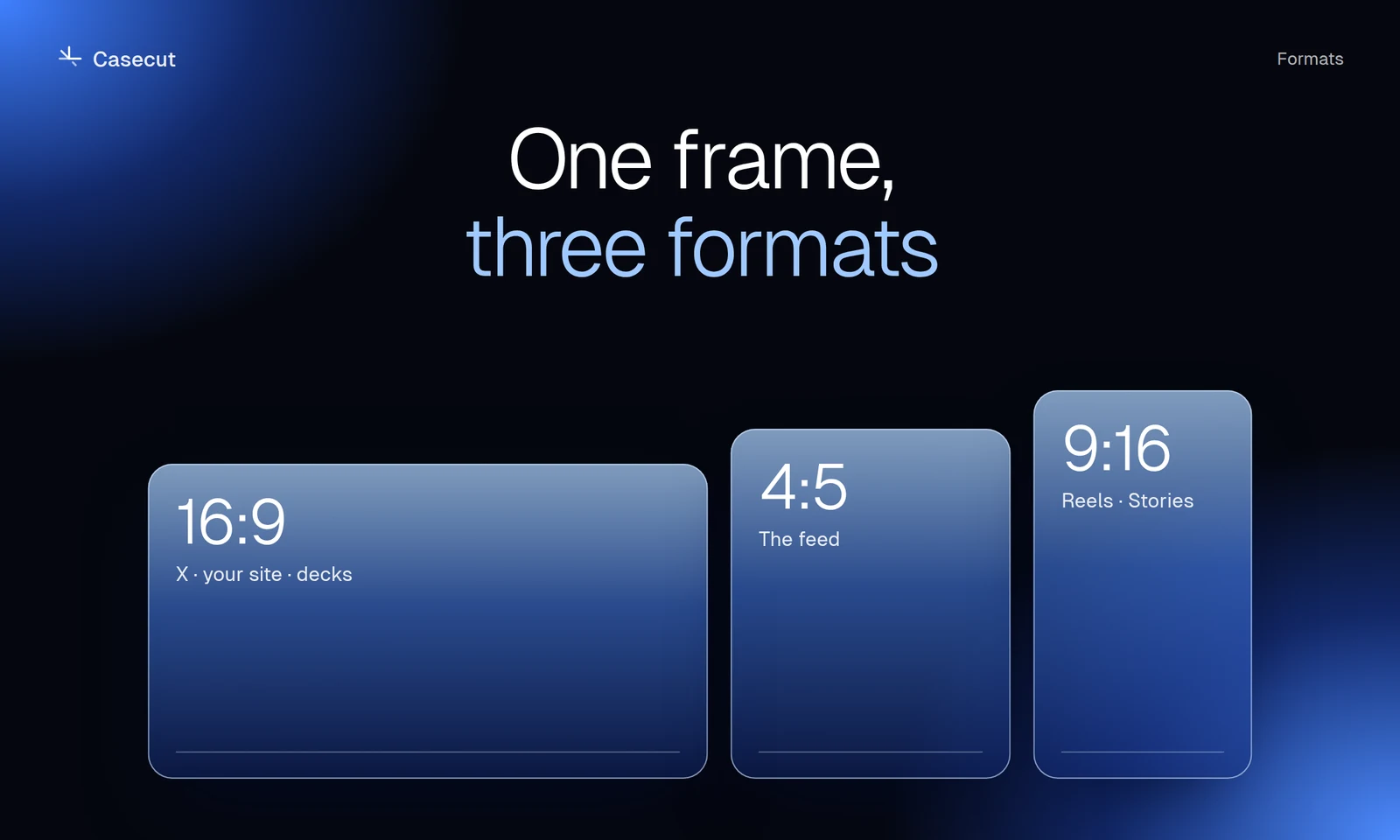 October 7, 20262 min read16:9, 4:5 or 9:16 for a case videoWhich format goes where, and why a crop is not enough.Read